Translator for macOS
Translate it right here, right now.
No more opening Google Translate in a browser tab.
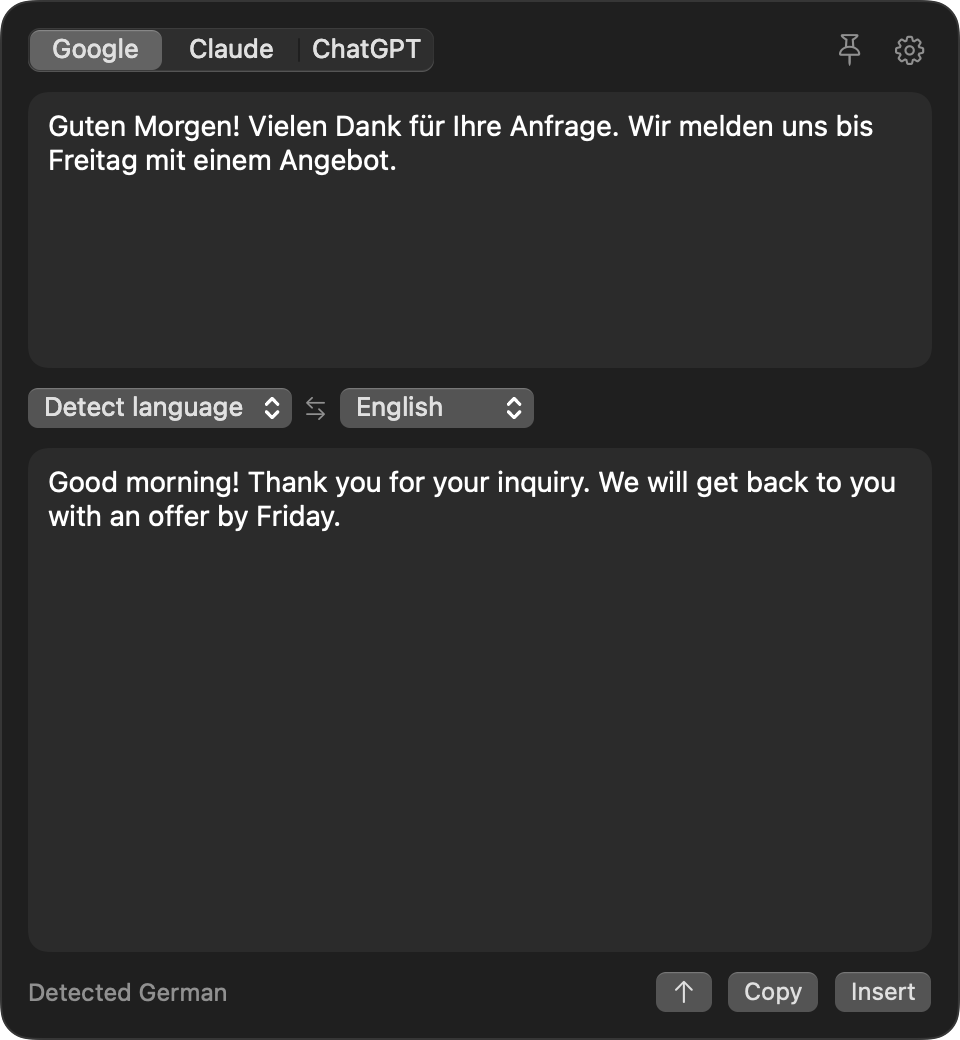
Select text in any app, press one shortcut, and the translation is there, on top of what you are doing. The same Google Translate, without leaving your work. If you use Claude or ChatGPT on your Mac, they can join in.
Translate That is a Mac app. Send yourself the link and download it there.
Version 1.1.0 · Free · macOS 14 or later · Apple Silicon and Intel · How to install
One shortcut in any app, or one click in the Dock or the menu bar.
Try it here
The window, right on this page.
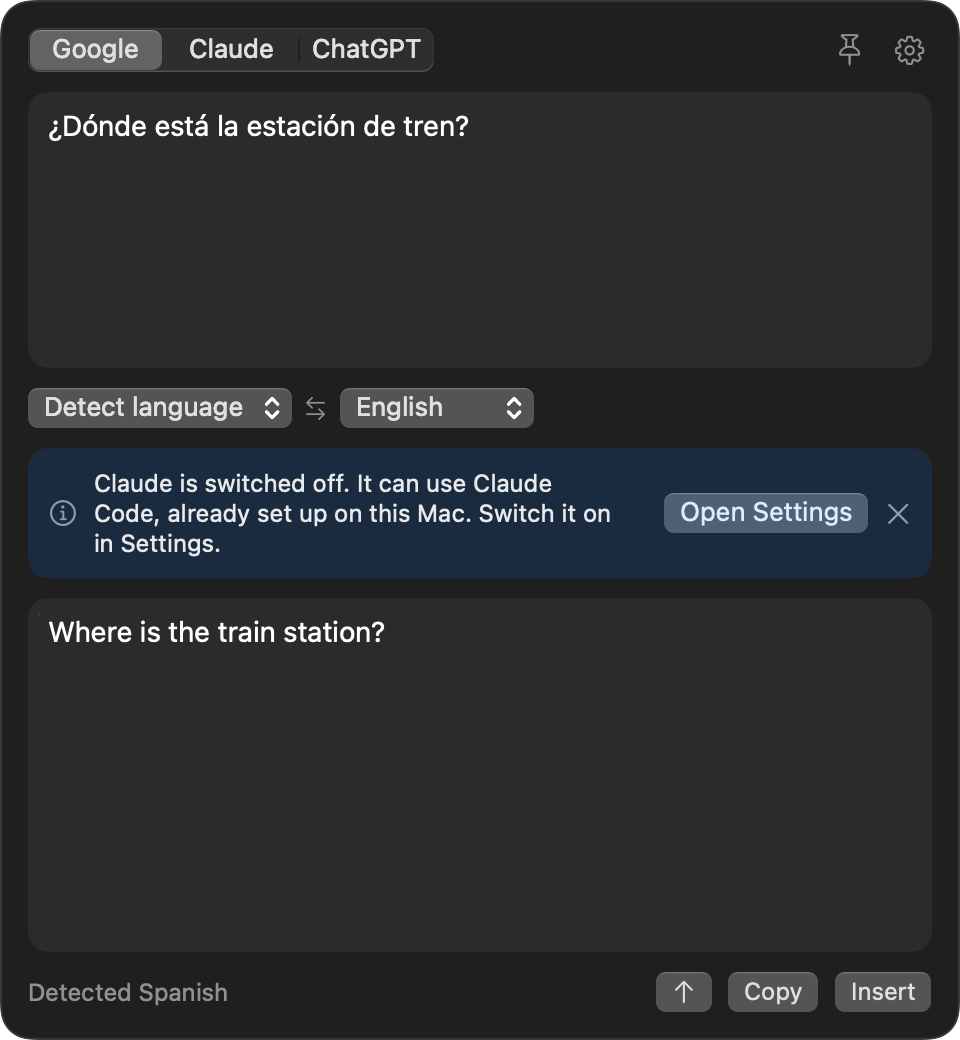
A working copy of the window with a few sample sentences. In the app it opens over whatever you are doing when you press ⌃⌘T.
How it works
Three steps, no window juggling.
Translate That waits in the menu bar and the Dock, and stays out of the way until you call it.
- 1Select text in any app and press ⌃⌘T
- 2Read the translation, already in the window
- 3Insert it back, or copy it, with one key
In detail
What happens when you press the shortcut.
Everything the app does, in the order it does it.
- It reads your selection. If text is selected in the app in front, Translate That takes it, without touching your clipboard. This needs the Accessibility permission. Without it the window opens empty and you paste the text in.
- The window opens on top. In the middle of the screen from the shortcut or the Dock, under the icon from the menu bar. The app you were in stays active, so the result can go straight back.
- The text is translated. Google Translate answers within a moment and keeps up while you type or edit. The language of your text is detected, or you choose it. The language to translate into is remembered.
- You use the result. ⇧⌘C copies it and closes the window. ⇧⌘↩ pastes it into the app you came from, over the selection. You can edit the result first.
- The window goes away. Esc, or a click anywhere else. Pin it with ⌘P to keep it open while you work in another window.
Translating in the other direction? The swap button turns the two languages around and translates the result back.
AI assistants
Already use Claude or ChatGPT? Bring them along.
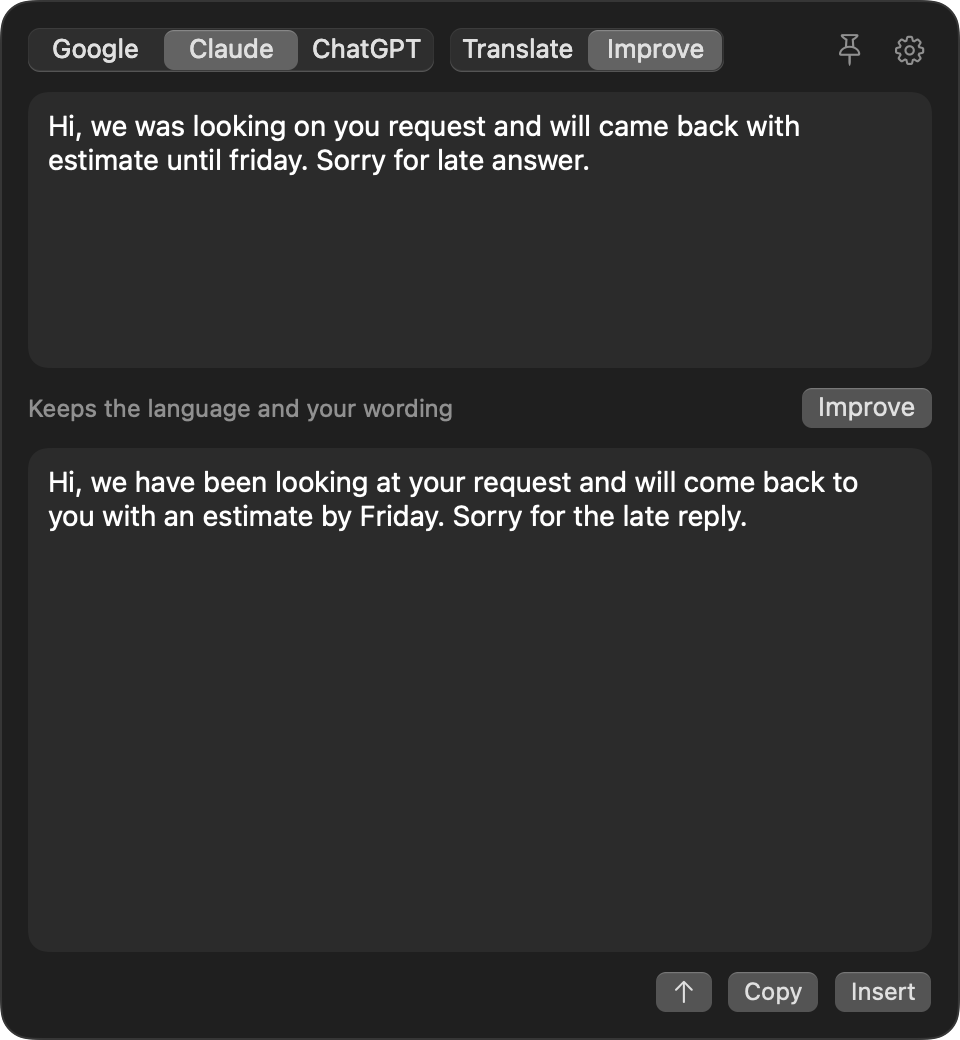
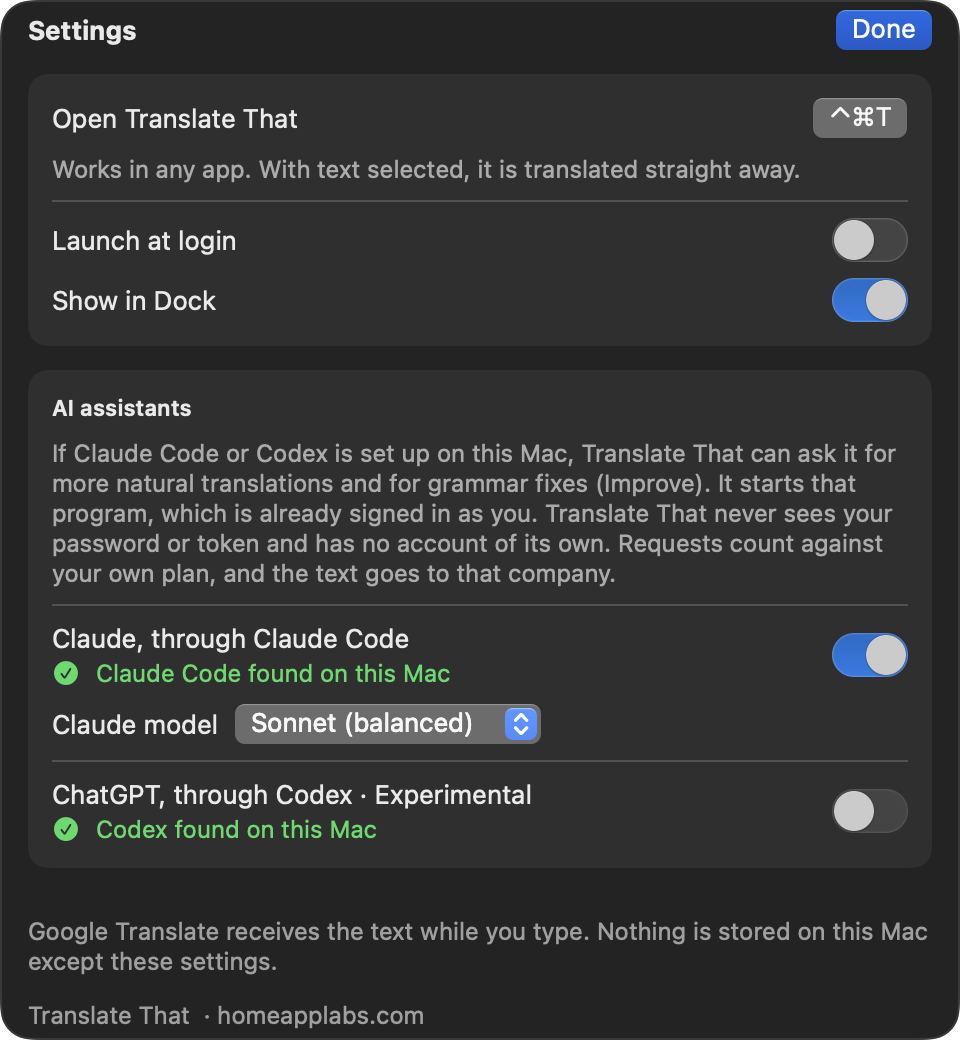
If Claude Code or Codex is set up on your Mac, Translate That can ask it instead of Google. Translations read more naturally, and a second mode, Improve, fixes grammar and phrasing without translating.
No new sign-in
How it uses your assistant without your password.
Translate That has no account, no key field and no server. It borrows a program that is already signed in.
What Translate That does
- Looks for the
claudeandcodexprograms on your Mac. - When you ask, starts that program and hands it your text.
- Shows the answer the program prints.
- Runs it with tools and file access switched off: text in, text out.
What it never does
- Ask for, read or store a password, token or API key.
- Sign in anywhere on your behalf.
- Send your text to Home App Labs.
- Use an assistant you did not switch on in Settings.
Requests count against your own plan with Anthropic or OpenAI. Whether your plan allows this kind of use is between you and them. ChatGPT through Codex is new and marked experimental.
Also in the box
Your own shortcut
Click the shortcut in Settings and press the keys you want.
Any direction
The source is detected or chosen. One button swaps the pair.
Straight back in
Insert replaces your selection with the result, in the app you came from.
Honest about what is off
All three engines are always listed. Click one that is not ready and the window says what it needs.
no historyno accountDock icon: optionalSmall and quiet
Stores nothing but your settings. Prefer only the menu bar? Switch the Dock icon off. Starts with your Mac if you want it to.
Where your text goes
To the translator you chose. Nowhere else.
Translation cannot happen on its own, so this app does use the network. Here is exactly when.
- The text in the window goes to Google Translate.
- It is sent while you type, and when you press the shortcut with text selected.
- Not for text that must stay on your Mac.
Claude
- Off until you switch it on.
- Text goes to Anthropic, through Claude Code.
- Only when you press ⌘↩.
ChatGPT
- Off until you switch it on.
- Text goes to OpenAI, through Codex.
- Only when you press ⌘↩.
Nothing is sent before there is text in the window. No history is kept, and nothing reaches Home App Labs.
Install
Download, allow once, done.
Translate That is free and not signed with a paid Apple developer certificate, so macOS asks you once to confirm that you trust it.
- Download Translate-That.pkg and open it. macOS shows a warning. Click Done.
- Open System Settings, then Privacy & Security, scroll down and click Open Anyway.
- Run the installer. Translate That lands in your Applications folder and its icon appears in the Dock and the menu bar.
- Click either icon and type, or select text anywhere and press ⌃⌘T. To pick up the selection and to insert the result, allow Accessibility from the menu behind a right-click on the icon.
See every step with pictures. Prefer no installer? Take Translate-That.zip and move the app yourself, or build it from the source.
Questions and answers
Is Translate That free?
Yes. It is free to download and use, with no in-app purchases, no subscription and no ads. The source code is public under the MIT licence.
Which Macs does it run on?
Any Mac with macOS 14 (Sonoma) or later, both Apple Silicon and Intel. There is no version for Windows, Linux, iPhone or iPad.
How does it translate?
With Google Translate, from the first launch and without an account or a key. The app sends your text to Google's translation service and shows the answer while you type.
Where does my text go?
To the service that translates it, and nowhere else. With Google selected, the text in the window is sent to Google while you type. With Claude selected it goes to Anthropic, and with ChatGPT to OpenAI. Nothing is sent to Home App Labs, and the app keeps no history. Do not use it for text that must not leave your Mac.
Do I need a Claude or ChatGPT account?
No. Google Translate works on its own. Claude and ChatGPT are optional extras for people who already use Claude Code or Codex on their Mac.
How does it use Claude or ChatGPT without asking me to sign in?
It does not sign in at all. If Claude Code or Codex is installed and you are signed in there, Translate That starts that program and passes it your text. The program answers with the account it already has. Translate That never sees your password, token or key. Requests count against your own plan with that company.
Claude or ChatGPT is greyed out or shows a notice. Why?
Both are switched off at first. Click the engine in the window and it tells you what is missing: either the switch in Settings is off, or the program (Claude Code for Claude, Codex for ChatGPT) is not on this Mac. Install it, sign in once in Terminal, then switch it on in Settings.
What does Improve do?
It fixes grammar, spelling and awkward phrasing in the language the text is already written in, without translating it and without changing what you said. Improve needs Claude or ChatGPT, because Google Translate only translates.
Why does it ask for the Accessibility permission?
For two things: to read the text you selected when you press the shortcut, and to paste the result back with Insert. Without the permission the app still works: the window opens empty, you paste your text in, and Insert copies the result for you to paste.
The shortcut does nothing. What is wrong?
Control-Command-T may be taken by another app. Open Settings from the gear in the window and record a different shortcut. A click on the icon in the Dock or in the menu bar always opens the window.
Can I hide the Dock icon?
Yes. Open Settings from the gear in the window and switch off Show in Dock. The app then lives only in the menu bar, and the shortcut keeps working.
Which languages does it know?
The list has English, Norwegian, Russian, Latvian, Swedish, Danish, German, Ukrainian, Polish, Lithuanian, Finnish, French and Spanish as languages to translate into. The language of your text is detected, so you can paste almost anything.
Does it work offline?
No. Translation is done by an online service, so the Mac needs an internet connection.
Why does macOS say it cannot verify the app?
Apple shows that message for every app whose maker has not paid for a developer certificate. Translate That is a free hobby project and is not signed that way. You allow it once in System Settings, Privacy & Security, with the Open Anyway button. The install guide shows each step.
Is it an official Google, Anthropic or OpenAI app?
No. Translate That is an independent hobby project. It uses the same translation address as Google's own web widgets, which Google does not document as a public service and could change. If that happens the app will be updated.
Was it really made with AI?
Yes. The code was written by an AI coding assistant, directed, tested and used every day by a human. More about how the apps are made.
How do I report a problem or suggest something?
Use the Contact us button on this site: it opens a short form and needs no account, only an email address for the reply. If you prefer, open an issue in the GitHub repository.
More from the workbench
Other apps from Home App Labs
Same idea each time: one small job, done well, free and open source.

Focus Energy
A focus timer that also looks after your breaks. Extend a session instead of starting a new one, and watch your energy for the day.
Copy That
Clipboard history that never leaves your Mac. Everything you copied behind one shortcut, and the things you reuse saved as snippets in groups.
Countdown Mini
Desktop widgets that count down the days to a trip, a deadline or a birthday. One, two or three events in a widget, each in its own colour.