Clipboard history for macOS
Copy once. Paste it again any time.
A copy and paste clipboard history that never leaves your Mac.
Press one shortcut, or click the icon in the Dock, and everything you copied is there: text, links, screenshots, colours, files. No account, no sync, and not a single network request.
Copy That is a Mac app. Send yourself the link and download it there.
Version 1.1.0 · Free · macOS 14 or later · Apple Silicon and Intel · How to install
One shortcut in any app, or one click in the Dock.
Try it here
The history, right on this page.
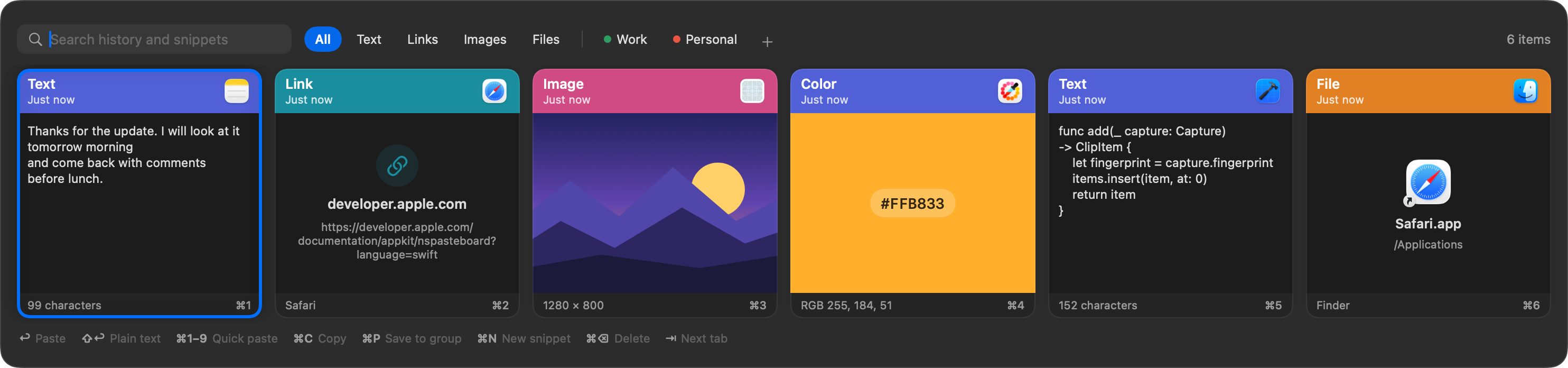
A working copy of the panel. In the app it slides up over whatever you are doing when you press ⇧⌘V.
History
A preview that fits what you copied.
First lines for text, a thumbnail for a screenshot, the colour itself for a hex code, the icon and folder for a file.
Snippets
Keep what you reuse.
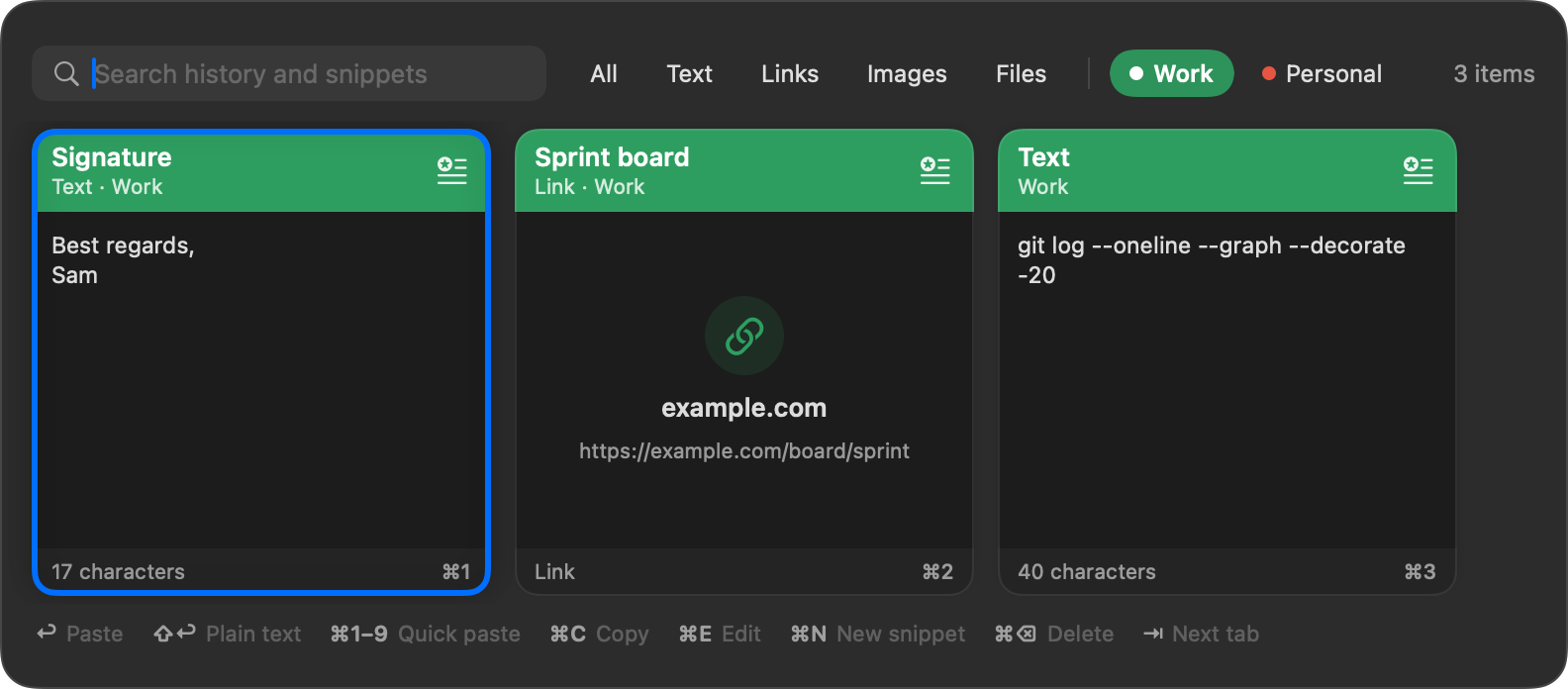
A signature, a link you send every week, a command you never remember. Save it once into a group.
- ⌘PSave a history entry into a group
- ⌘NWrite a new snippet by hand
- ⌘1Paste by its number in the group
Also in the box
Links stay links
The card is drawn from the address itself. Nothing is fetched, ever.
Paste your way
Return pastes, Shift-Return pastes plain text, Command and a number picks a card.
You set the limits
History is trimmed by age and by size. Snippets are never trimmed.
Write your own
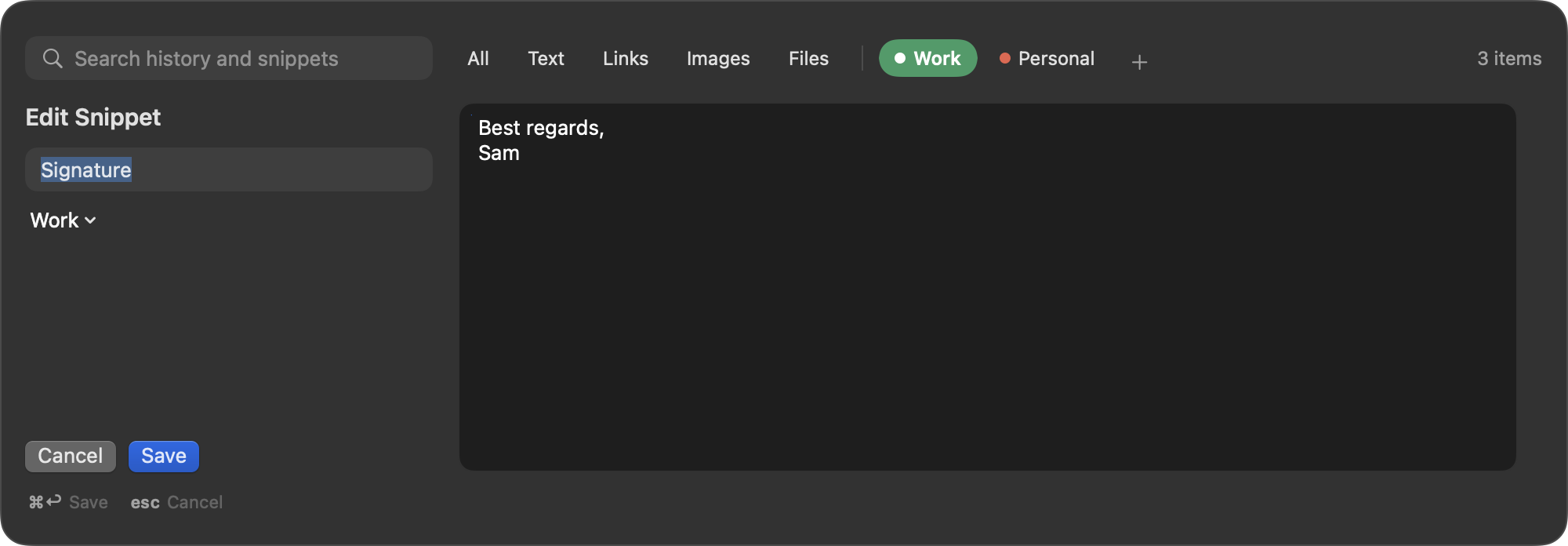
A small editor for snippets: a name, a group and the text.
history.jsongroups.jsonblobs/Your data, your Mac
Plain files in one folder, readable by you only. Passwords marked as secret by password managers are not recorded.
Compared with a cloud clipboard manager
Same convenience, nothing leaves the room.
Many clipboard managers sync your history and look up every link you copy. Copy That does neither.
Cloud clipboard manager
- Requests a preview for every link you copy, private ones included.
- History is synced through an account or a cloud service.
- Often a subscription.
- You trust what the app says it does.
Copy That
- Never contacts the network. A link is shown as its address.
- History is a folder of files on this Mac.
- Free, no account.
- Open source: every line is there to read.
Install
Download, allow once, done.
Copy That is free and not signed with a paid Apple developer certificate, so macOS asks you once to confirm that you trust it.
- Download Copy-That.pkg and open it. macOS shows a warning. Click Done.
- Open System Settings, then Privacy & Security, scroll down and click Open Anyway.
- Run the installer. Copy That lands in your Applications folder and appears in the Dock and the menu bar.
- Press ⇧⌘V, or click the icon in the Dock, and pick a card. The first time, macOS asks for the Accessibility permission, which lets the app paste for you.
See every step with pictures. Prefer no installer? Take Copy-That.zip and move the app yourself, or build it from the source.
Questions and answers
Is Copy That free?
Yes. It is free to download and use, with no in-app purchases, no subscription and no ads. The source code is public under the MIT licence.
Which Macs does it run on?
Any Mac with macOS 14 (Sonoma) or later, both Apple Silicon and Intel. There is no version for Windows, Linux, iPhone or iPad.
Does it send anything I copy to the internet?
No. Copy That makes no network requests at all. It does not fetch previews for links, has no account, no sync and no analytics. The history is a folder of files on your Mac.
Why do links not show a preview picture?
On purpose. Fetching a preview means contacting every address you copy, including private and internal ones. Copy That draws a link card from the text of the address: the domain and the full link.
Does it record my passwords?
Entries that password managers mark as concealed or temporary are skipped. You can also pause recording from the menu bar icon, and delete any entry with Command-Delete. The history folder is readable by your user only.
Why does it ask for the Accessibility permission?
To press Command-V for you after you pick a card, so the text lands in the app you were typing in. Without the permission Copy That still works: the card is copied to the clipboard and you press Command-V yourself.
The shortcut does nothing. What is wrong?
Shift-Command-V may be taken by another clipboard app. Switch the shortcut off there or quit that app, then try again. Meanwhile, a click on the Copy That icon in the Dock or in the menu bar opens the history too. Some apps also use it for Paste and Match Style: while Copy That is running, use Shift-Return in its panel to paste as plain text.
How long is the history kept?
You decide. The menu bar icon has two limits: the number of entries (200 to 2000) and their age (one day to forever). Saved snippets are never removed by these limits.
What is the difference between history and snippets?
History is everything you copied, newest first, and old entries drop off. A snippet is something you chose to keep: saved from the history or written by hand, with an optional name, in a group you created. Snippets stay until you delete them.
Does it sync between Macs or with an iPhone?
No. There is no sync and no phone app. Everything stays on the one Mac.
Why does macOS say it cannot verify the app?
Apple shows that message for every app whose maker has not paid for a developer certificate. Copy That is a free hobby project and is not signed that way. You allow it once in System Settings, Privacy & Security, with the Open Anyway button. The install guide shows each step.
Where is my data stored?
In the folder ~/Library/Application Support/PastePlus: history and snippets as JSON, images next to them. The folder keeps the app's first working name. Nothing is sent to Home App Labs.
Was it really made with AI?
Yes. The code was written by an AI coding assistant, directed, tested and used every day by a human. More about how the apps are made.
How do I report a problem or suggest something?
Use the Contact us button on this site: it opens a short form and needs no account, only an email address for the reply. If you prefer, open an issue in the GitHub repository.
More from the workbench
Other apps from Home App Labs
Same idea each time: one small job, done well, free and open source.
Focus Energy
A focus timer that also looks after your breaks. Extend a session instead of starting a new one, and watch your energy for the day.

Translate That
A translator in the menu bar. Select text in any app, press one shortcut and read the translation. Google Translate built in, Claude or ChatGPT if you have them.
Countdown Mini
Desktop widgets that count down the days to a trip, a deadline or a birthday. One, two or three events in a widget, each in its own colour.